Documentation
Troubleshooting
Gatekeeper and DMG, folder permissions, sync status, invitation problems, and the browser demo — symptom, cause, and steps for each problem.
For each problem this page says how you recognise it (Symptom), what causes it (Cause), and what you can do (Steps). Messages are quoted as the app shows them. What cloud, sync, and collaboration mean in general is explained in Local or cloud.
On this page:
- macOS blocks BloomMD (Gatekeeper, DMG)
- A folder will not open or save
- The sync status does not say "Synced"
- Enablement or access does not work
- Browser demo
macOS blocks BloomMD (Gatekeeper, DMG)
Symptom: On launch, macOS says BloomMD cannot be opened or cannot be verified.
Cause: Starting with version 0.5.7, the macOS arm64 release is Developer ID signed and notarized by Apple; the release check evaluates notarization and Gatekeeper before a build is published. A manual Gatekeeper exception is not intended for these builds. Earlier builds were not notarized, and a Gatekeeper warning is expected there. A block on a current build is unexpected and something we want to hear about.
Steps:
- Check the version: in the app under Help and settings → About BloomMD, or from the file name of the download.
- If it is below 0.5.7, download the current build from bloommd.io/download. Only take downloads from there.
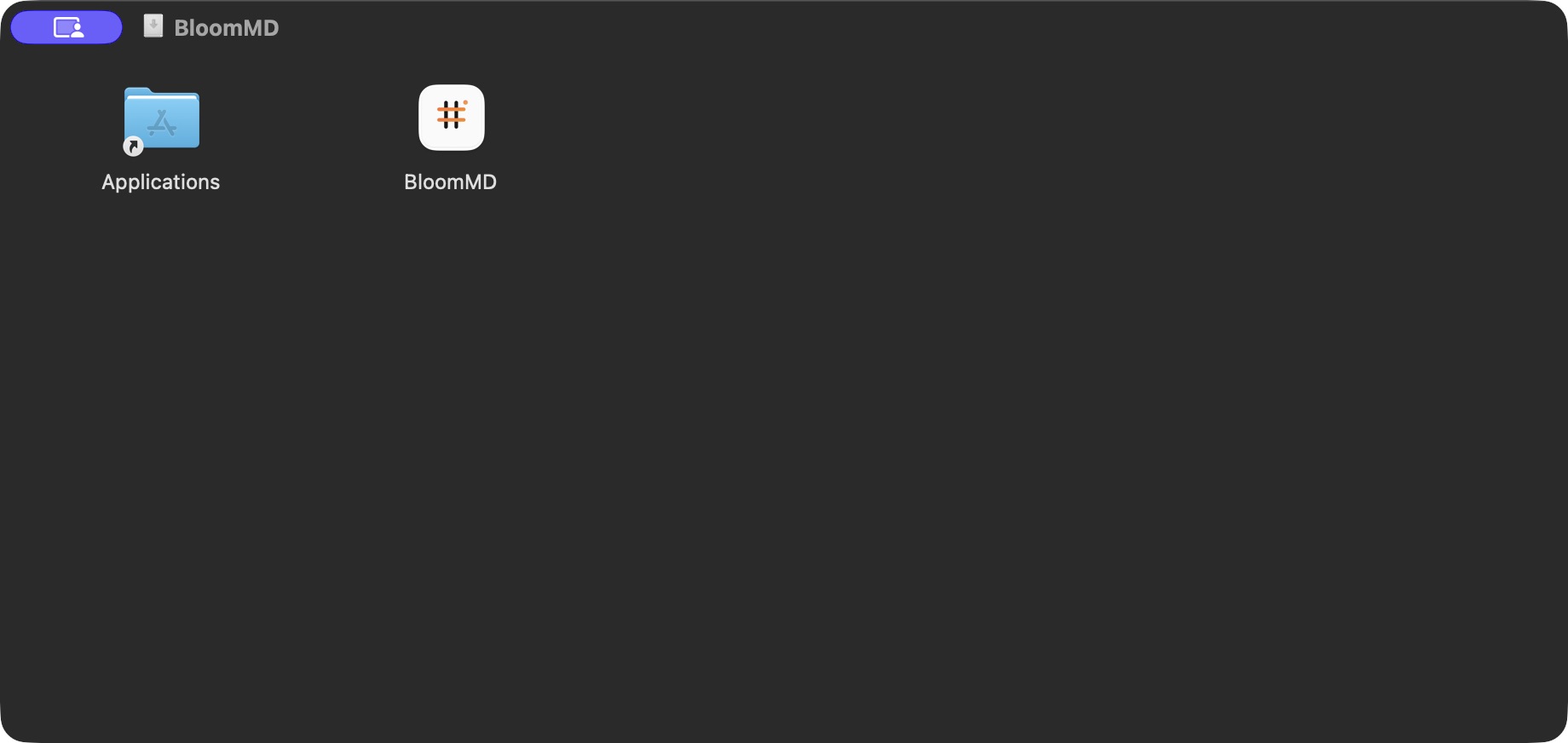
- Open the DMG file, drag BloomMD to the Applications folder, and double-click it there, not from the DMG window.
- If macOS still blocks it, do not turn Gatekeeper off. Send the version and the exact wording of the
message (a screenshot is enough) to
feedback@bloommd.io.
Omarchy/Linux has no Gatekeeper: install the Pacman package with sudo pacman -U, see
Desktop app. Windows is not part of the beta.
A folder will not open or save
Web app in the browser
Symptom: The folder icon (tooltip Open local Markdown folder) is missing in /app.
Cause: The browser does not support the File System Access API; this applies to Firefox and Safari.
Steps: Use Chrome or Edge, or the Desktop app. To just try BloomMD, use the browser demo.
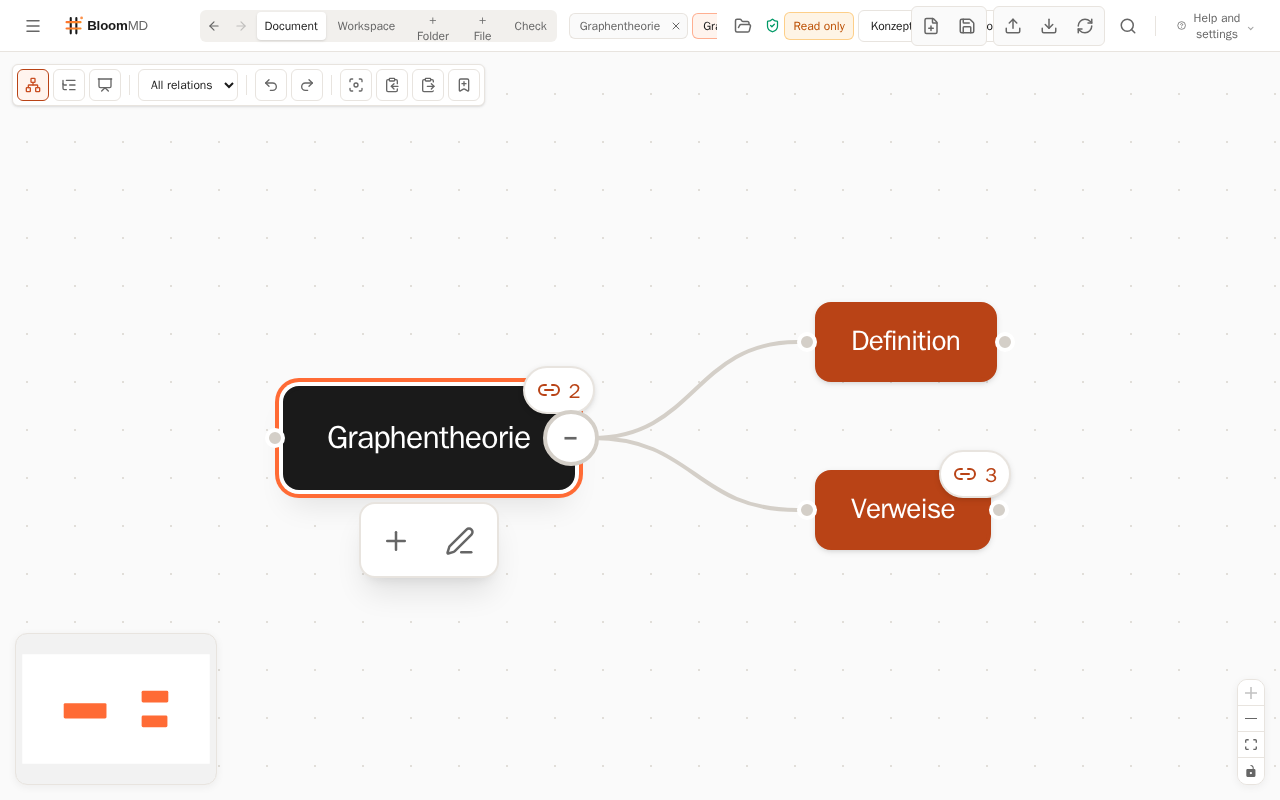
Symptom: Read only appears next to the folder name.
Cause: The folder is only shared for reading.
Steps: Click Read only. The browser then asks for write access. This only happens on a click on purpose, because browsers reject a request that no click triggered.
Symptom: The message "Write access to this folder was denied. Changes cannot be saved."
Cause: Write access was declined in the browser dialog.
Steps: Click Read only again and allow it, or reopen the folder with the folder icon. Until then you can look at the map but not save. If you cancel the folder picker, nothing happens.
Symptom: The workspace map cannot be edited; the app says workspace views are derived.
Cause: The workspace map is a derived overview and always read-only.
Steps: Open a file from the selector next to the folder name, or choose a file node in the map and edit there.
Desktop app
Symptom: The folder overview cannot be edited; the app says "The workspace overview is read-only. Open the source file to edit it."
Cause: The folder overview is read-only; only the individual files are editable.
Steps: Choose a file node and Open source file (or Open resource), or open the file in the file browser. Save with Cmd+S (macOS) or Ctrl+S (Linux).
Symptom: A conflict notice appears while you are editing a file.
Cause: The file was changed outside BloomMD.
Steps: Your version is kept. Compare both versions before you save or reload.
The sync status does not say "Synced"
In the Web app the sync status sits in the header next to the file title. It only appears when sync is set up, and in windows 1536 pixels wide or more. When several people are in the file, it shows their count in parentheses.

- Synced: The connection is up and everything is fine.
- Connecting... / Reconnecting...: BloomMD is establishing the connection. If it lasts, check the network and reopen the file. After sleep mode or a network change this can be necessary.
- Offline: There is no connection. For a shared local file the local file stays editable; BloomMD does not silently pass new local changes off as cloud changes. Restore the connection first.
- Connection failed: The reason and a Reconnect link appear next to it.
The reasons behind "Connection failed":
- "Workspace file not found": The cloud file does not exist in the active workspace. Choose the right workspace and reload the file list.
- "Workspace is full": The sync server has reached its limit and accepts no further connection for this file. Try Reconnect again later; if that does not help, report it through feedback.
- "Access to this workspace was revoked": You were removed from the workspace. The last local copy is kept but can no longer write back. Only an owner can grant access again.
- "Access not authorized": Sign in again and check that you are signed in with the address you were invited with.
- "Could not renew sync ticket": Every connection needs a short-lived ticket. Use Reconnect; if that fails, sign in again.
- "Could not restore the connection": The automatic attempts are used up. Check the network, then use Reconnect.
Conflict while saving: If the file was saved while you were working on it, BloomMD shows "This file changed while you were working" with a comparison (red is the stored version, green is yours). Nothing is overwritten silently. You choose Load stored version, Save as copy, or Keep my version.
Read-only: "This workspace is read-only (viewer)." means your role is Viewer. An owner can give you the Editor role.
New files from others are missing: During the beta the file list may need a reload. Changes in files that are already open appear live.
In the desktop app the states of a shared local file are called Connected, Offline, Conflict, and Access revoked. The meaning is the same; more under Collaboration.
Enablement or access does not work
Registration
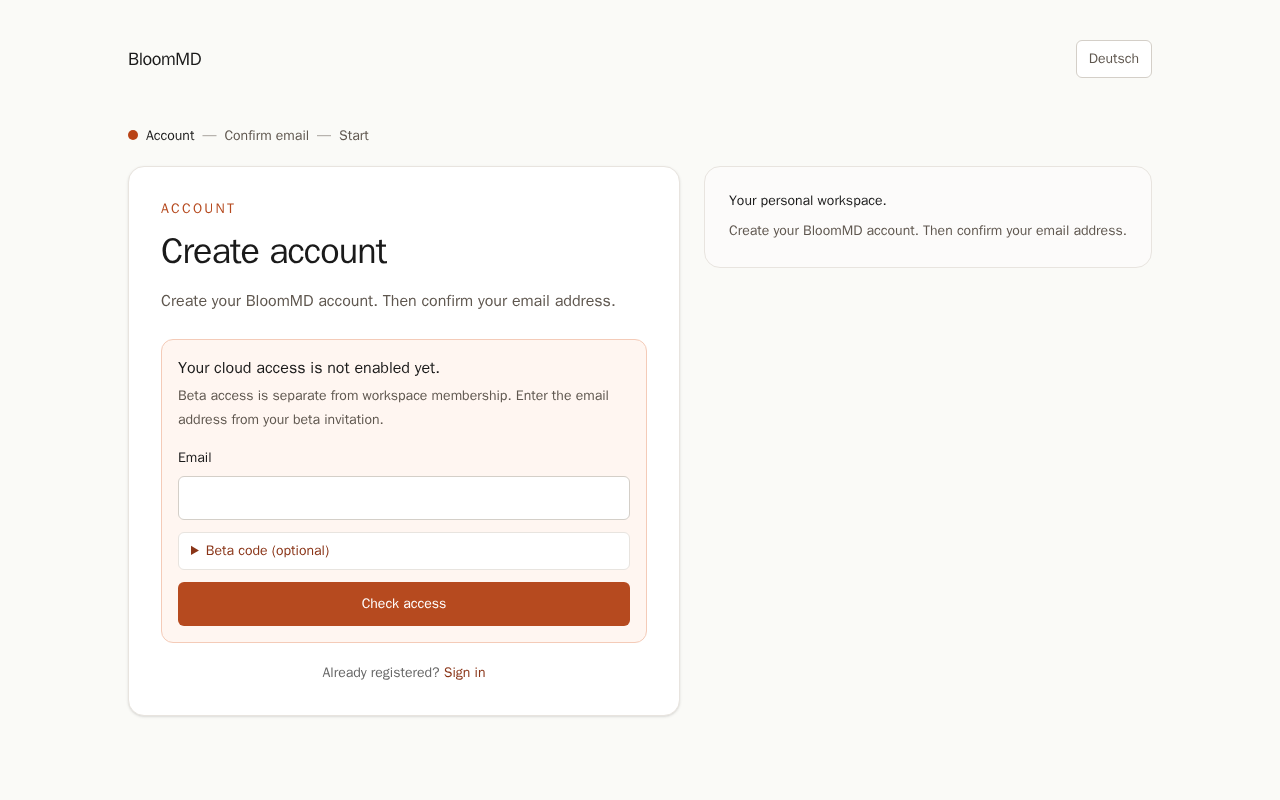
Normally you create the free trial account yourself, without an invitation and without a waitlist. Only if the operator has turned on the access switch do you see "Your free trial account is not enabled yet." instead of the form.
- "Your free trial account is not enabled for this email address yet." Use exactly the address that was enabled. If it is not enabled yet, contact the BloomMD team.
- "The access code is invalid." Check the code. The Access code (optional) field is only needed if you received a code.
- Enablement email did not arrive: Check your spam and promotions folders; an admin can send it again.
Email confirmation
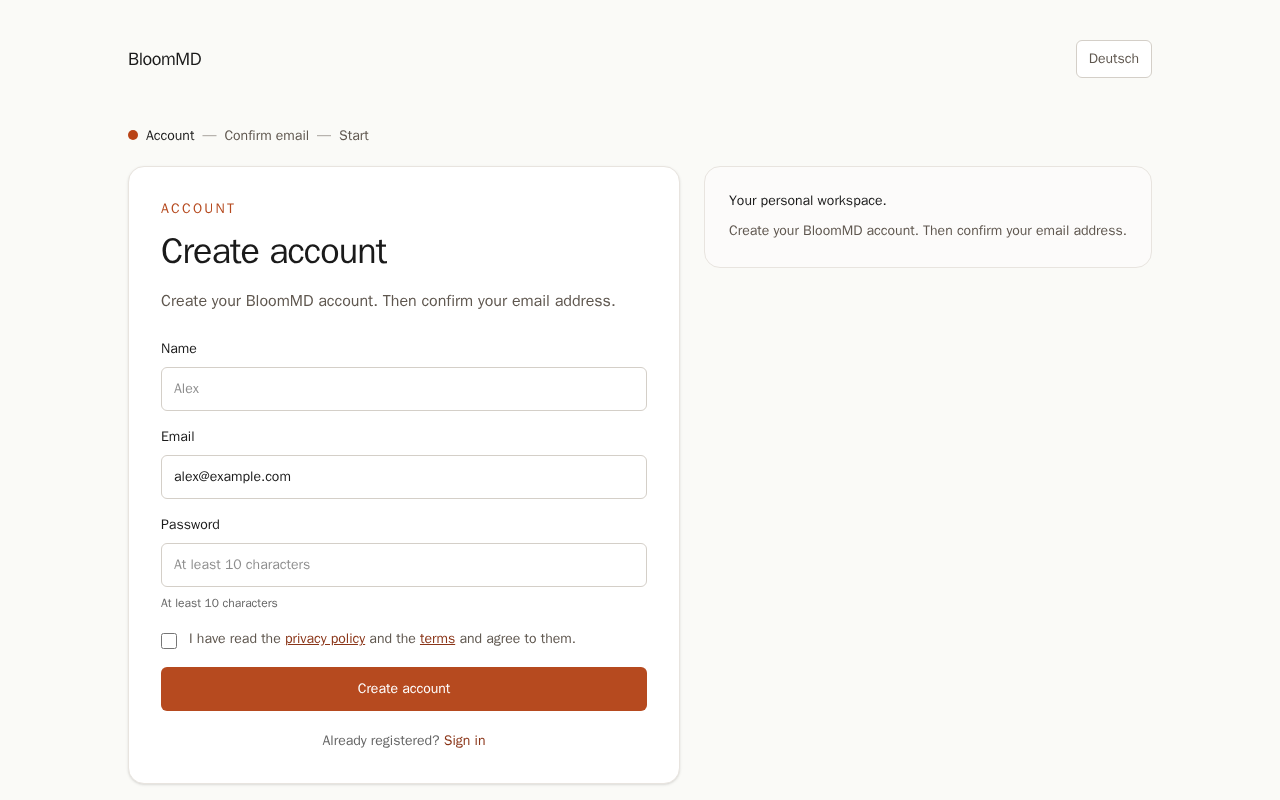
- "Please confirm your email address first." Without a confirmed address there is neither a login nor a session. Open the link from the confirmation email; it is valid for 24 hours.
- "This confirmation link is invalid or expired." Use Resend confirmation email on the sign-in page.
Invitation to a workspace
After signing in, you confirm joining explicitly with Join workspace.
- "This invitation link is invalid or no longer available." or "This workspace invitation is no longer active." Ask the inviter for a new invitation.
- "This invitation has expired." or "This invitation was revoked by the workspace owner." Here too only a new invitation helps; the page offers Ask the inviter for a new invitation.
- "You are already a member of this workspace." Continue with Open workspace.
- "This invitation was sent to …. You are signed in as …." You are signed in with a different address. Choose Sign out and use the invited email.
- "This invitation handoff is invalid or expired." Open the link in the invitation email again; if that does not help, have them invite you again.
- The second person does not see the workspace: Check that the invitation was accepted and that they are signed in with exactly the invited address. An account alone does not give access.
The full flow is in Free trial account and Collaboration.
Browser demo
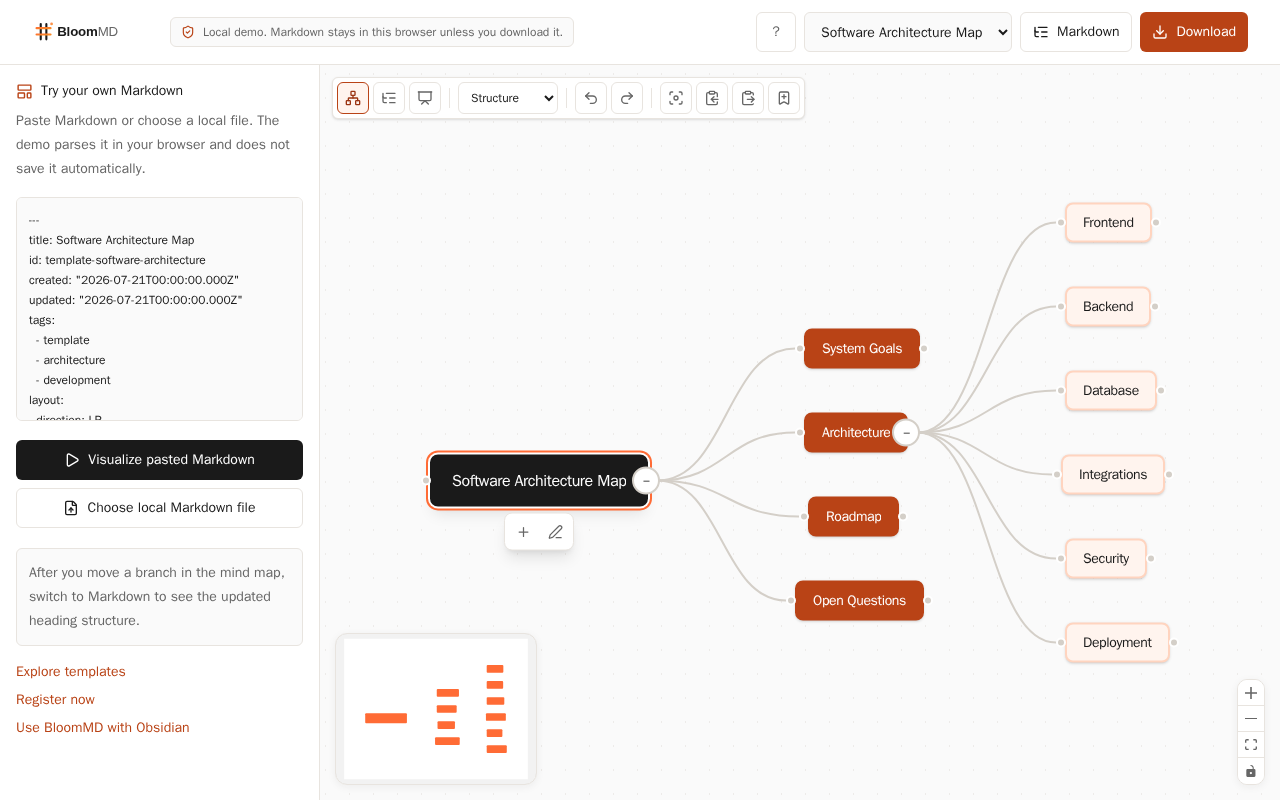
The browser demo needs neither an account nor the File System Access API. It opens single Markdown files or pasted text, not folders.
Symptom: There is no way to open a folder.
Cause: The demo works with one file or with pasted Markdown.
Steps: For folders, use the Web app in Chrome or Edge, or the Desktop app.
Symptom: My changes are gone after reloading.
Cause: The demo does not save anything automatically; your Markdown stays in the browser unless you download it.
Steps: Choose Download before you close the page. The result is a .md file.
Symptom: My file cannot be selected or does not load.
Cause: The picker accepts Markdown and text files (.md, .markdown).
Steps: Rename the file, or copy the text, paste it into the input field, and choose Visualize pasted Markdown.
If none of this fits
Use the Feedback button in the app; a screenshot is required. If the app is not reachable, write to
feedback@bloommd.io with the version, the wording of the message, and the steps that led to the
error. Do not upload private Markdown content, credentials, or third-party personal data.