Documentation
Collaboration
Create a shared workspace, invite teammates, and edit Markdown together.
BloomMD collaboration is workspace-based. A workspace owner creates a team workspace and invites people by email with an explicit role. A beta-product invitation alone does not grant access to a personal workspace.
Share one local Desktop file deliberately
A local Markdown file remains on your device first. You decide per file whether it should be mirrored into a workspace. BloomMD never uploads an entire folder or additional local files.
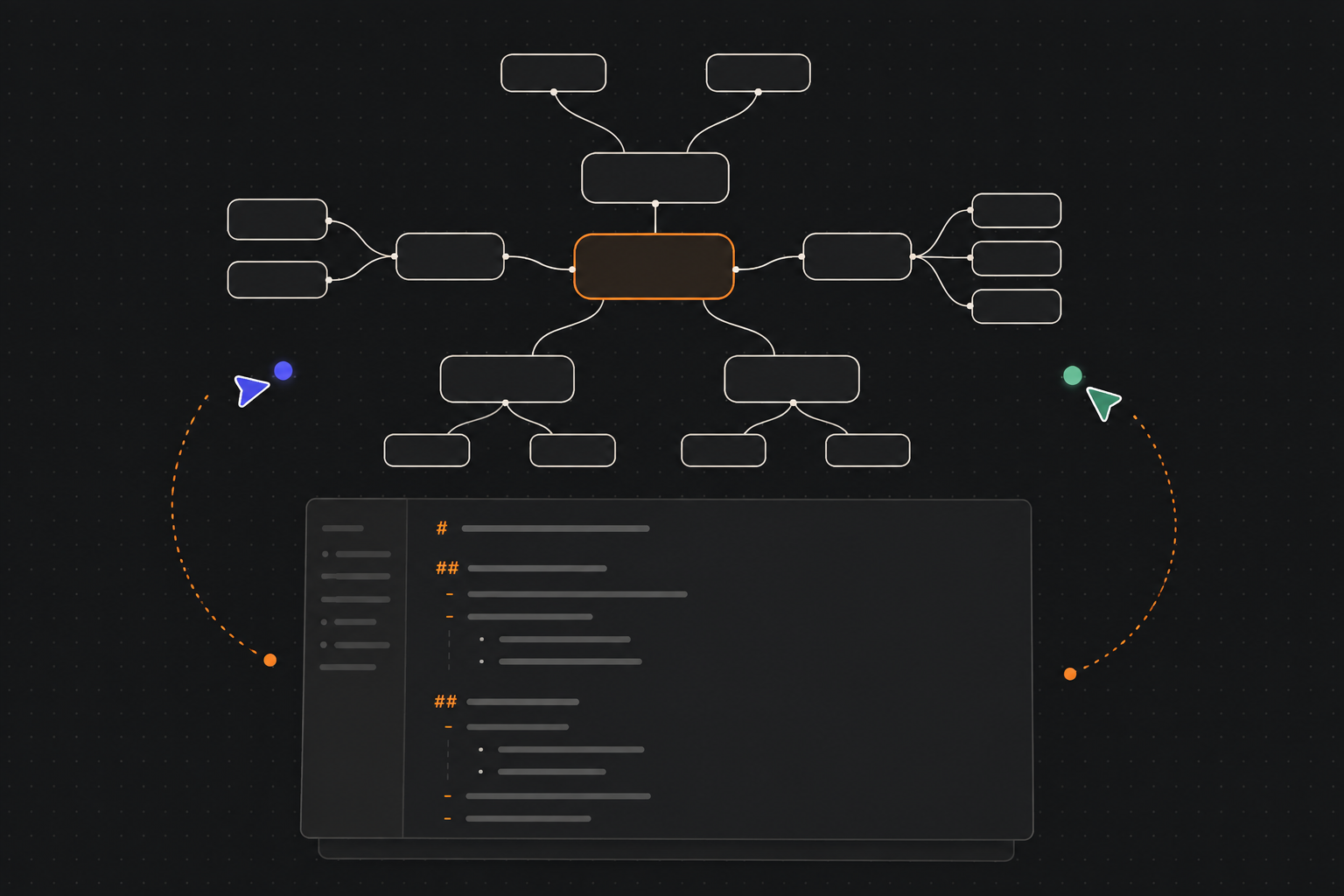
The illustration explains the flow. The Desktop app shows the actual sharing state on the open file itself.
- Open the local Markdown file in the Desktop app.
- Choose Share this local file from the file header.
- Select a saved server profile and workspace, then confirm the proposed cloud filename.
- Confirm Share file. Only now is that one file created as a cloud document and connected to its local Markdown mirror.
- Invite collaborators from the Web app's workspace dialog. They open the cloud document in the browser; presence badges show concurrent work.
The server receives the workspace ID, cloud document ID, and cloud filename only. The local path, folder, and other Markdown files remain on the device. The explicit binding is recorded in the workspace audit trail.
Important:
Connecteddoes not turn the local folder into a general sync folder. The share still covers exactly this Markdown file. Start the visible sharing flow again for another file.
Status and safe local work
- Connected: the local and cloud versions are actively mirrored.
- Offline: the local file remains editable. New local edits are not silently emitted as cloud changes; reconnect first and check the visible status.
- Conflict: BloomMD never overwrites a diverging local copy. Review and resolve the conflict deliberately before continuing to share.
- Access revoked: the server closes the sync connection. The last local copy remains, but cannot write back to the workspace.
Use Disconnect share to remove the local binding only. Neither the local file nor the existing cloud document is deleted, and the decision is auditable.
Bind an already shared file in Obsidian
Desktop and Obsidian do not need to create a second cloud document for the same work. When the local file was already shared from the Desktop app, the corresponding vault note can deliberately adopt that existing cloud file:
- In the BloomMD Obsidian settings, store the server URL, optional workspace ID, and a personal access token. The token stays in Obsidian Secret Storage, never in the vault.
- Open the corresponding Markdown note and run BloomMD: Share current note with BloomMD workspace from the Command Palette.
- Choose Bind existing: filename.md, rather than Create new.
- BloomMD reads the cloud document ID and version, saves only the local binding, and connects the note to the same sync room as Desktop and the Web app.
The selection transmits workspace and cloud-document data only; the vault path is never sent to the server. If the local note differs from the cloud version, BloomMD shows a conflict instead of silently overwriting either side. A server-side revocation also ends the Obsidian connection; the last local note remains available but cannot write back.
First shared document
- Sign in at
https://bloommd.app. - Open the workspace selector and choose New team workspace.
- Create the workspace and a Markdown document.
- Choose Invite member, enter the teammate's email, and select Editor or Viewer.
- The recipient follows the email link, creates an account if needed, and signs in with the invited address.
- Both people select the same workspace and document.
- Confirm
Synced (2), coloured remote presence badges, a shared edit, and persistence after reload.
Desktop app and workspace switching
After connecting the desktop app with a personal token, the remote sidebar shows the active workspace and your role. Use its workspace selector to choose your personal workspace or an invited team workspace. BloomMD reloads only that workspace's files, disconnects the old sync room, and reconnects the open document in the new workspace.
- Owner and Editor can edit documents.
- Viewer is read-only; the server enforces this in addition to the UI.
- Local folders and Markdown files are never changed or uploaded by a remote workspace switch.
- Removing a member closes an active sync connection and denies new document and sync-ticket access.
Roles
- Owner can rename the workspace, invite people, change roles, and remove members.
- Editor can read and edit Markdown documents.
- Viewer can read documents and presence but cannot submit document updates.
Every membership and sync-ticket check happens on the server. Removing a member revokes future document and sync-ticket access. A member can leave from the workspace dialog; the last owner must transfer ownership or add another owner first.
Invitations and recovery
Invitation links are single-use and expire automatically. The owner can resend or revoke a pending invitation. If the workspace is missing after sign-in, check that the account email exactly matches the invited address and that the invitation has not expired or been revoked.
Sync and local files
The active cloud workspace is separate from a local browser folder. Local folders are never uploaded
automatically. A local Desktop file joins collaboration only after the explicit per-file flow above.
Synced (2) means two clients are connected to the same cloud document; Offline or Connecting
means the client should reconnect before relying on shared edits.
If switching workspaces is denied, the desktop app restores the previous workspace. Check that the invitation is still active and that the account email matches the invitation.
Support checklist
When reporting a collaboration problem, include the workspace name, role, route, visible sync status, browser/OS, and approximate time. Never include passwords, invitation tokens, or private Markdown content in a support request.