Documentation
Local or cloud
What stays on your computer, what goes to the cloud, and when collaboration applies.
BloomMD works in two ways: locally with files on your computer, and in the cloud with documents on the server. Whether anything reaches the cloud depends on where you open the file and whether you deliberately share it — never on merely opening it.
At a glance
- Desktop app, local folder: files on your computer, no account, no upload, no collaboration.
- Web app, local folder in the browser: files on your computer, sign-in for
/app, no upload, no collaboration. - Browser demo: Markdown in the browser until you download it; no account, no upload.
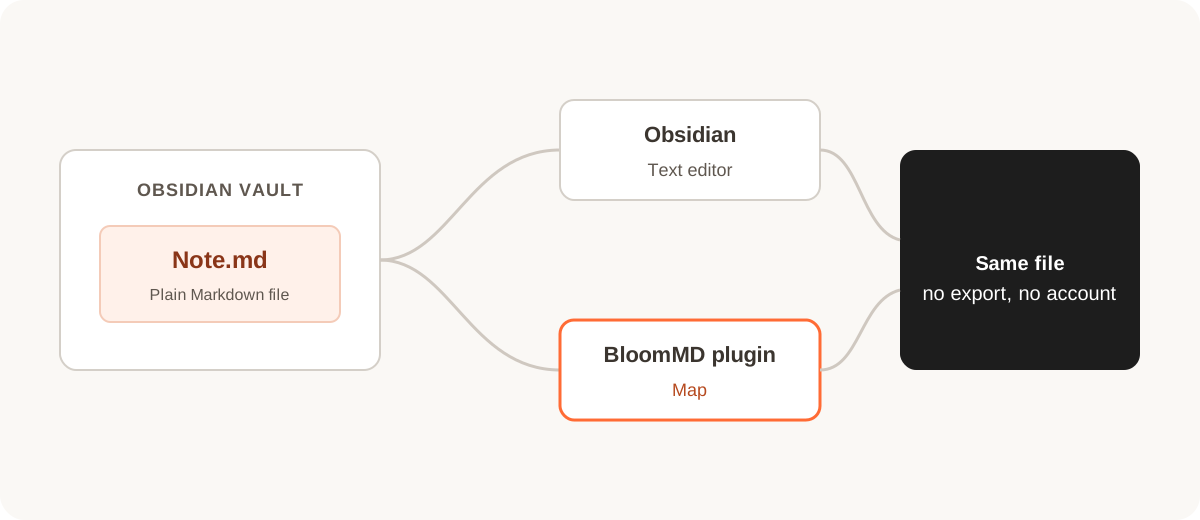
- Obsidian plugin: files in your vault, no account, no upload.
- Web app, cloud workspace: documents in the server's database, account needed, upload, collaboration possible.
What stays local
- Desktop app: works entirely locally, without an account and without a network. The Markdown file stays an ordinary file in your folder.
- Local folder in the Web app: you open the folder through the browser's File System Access API. Nothing is uploaded, including attachments and PDFs.
- Browser demo: your Markdown stays in the browser unless you download it.
- Obsidian plugin: edits the notes of your vault, without a BloomMD account.
What goes to the cloud
Only what you explicitly bring into a cloud workspace:
- Import Markdown in the Web app creates the file as a cloud document in the chosen workspace.
- Share this local file (desktop app) creates exactly this one file as a cloud document. No folder and no other file is uploaded.
- Publish folder as a shared workspace (desktop app) transfers only the Markdown files you leave ticked in the preview. The local files stay the source, and the folder path never leaves your device.
With the free trial account, do not upload credentials, secrets, third-party personal data, or production-critical content. There is no recovery promise for cloud data.
When collaboration applies
Collaboration exists only for cloud documents. Several people open the same cloud file in a team workspace, each with their own account; their changes are merged instead of overwriting each other. Roles in the workspace: Owner and Editor can edit, Viewer can only watch.
A purely local file is not shared automatically. Only Share this local file or publishing a folder turns it into a cloud document.
The full flow is described in Collaboration.
When something does not work
Folder permissions, sync status, and invitations are explained in Troubleshooting.
Which path to choose
- You only want to work with your own files: desktop app, or a local folder in the Web app.
- You want to try BloomMD: the browser demo, without an account.
- You want to work on the same file with others: a cloud workspace. You create the account under Free trial account.